




















































In some cases, you have to work in several OS at once. It is in such situations that virtualization technologies come to the rescue, one of them being VirtualBox. However, initializing the required solution into the virtual machine system does not solve the problem. Initially, there is no integration between the host and the guest machine. So, there is no possibility to transfer files, change screen extensions, and use complex software. But you can always install guest OS add-ons.
What VirtualBox allows
VirtualBox guest OS add-ons allow you to:
- use a shared folder (to share files between systems);
- use a shared clipboard;
- change the screen extension;
- integrate guest OS program windows with the real desktop;
- optimize system performance.
Next, let's see how to install guest OS add-ons in Ubuntu. Looking ahead we note that there is nothing complicated here.
Install the necessary software
First of all, we need to install the tools that are applicable for the purpose of building the Linux kernel module. In this case, the installation of an additional guest OS will be quite successful.
Let's execute it in the terminal:
$ sudo apt install gcc make perl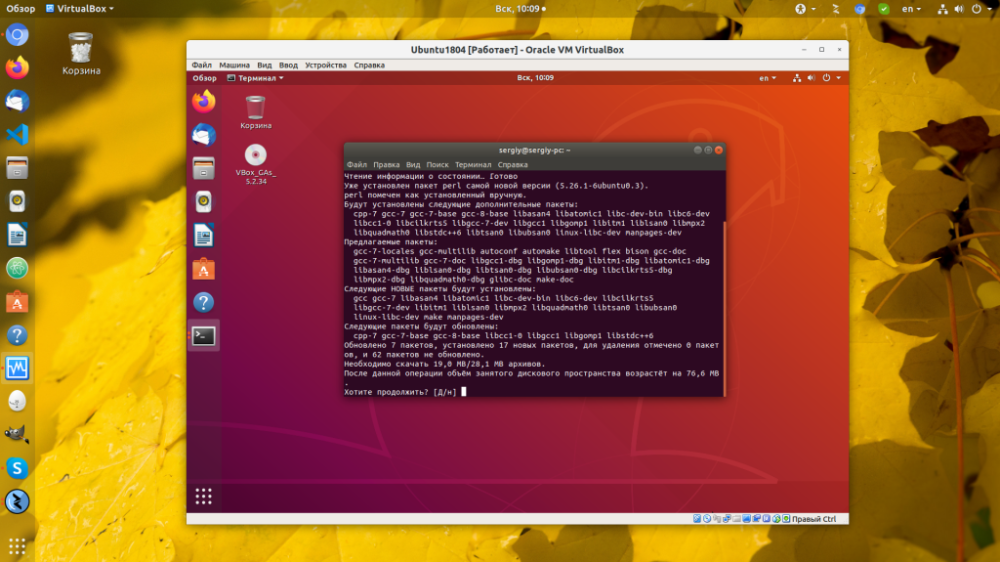
Later on, the list of dependencies will vary, but at any time you can find them out by running the installation and seeing what errors appear.
Connecting the image
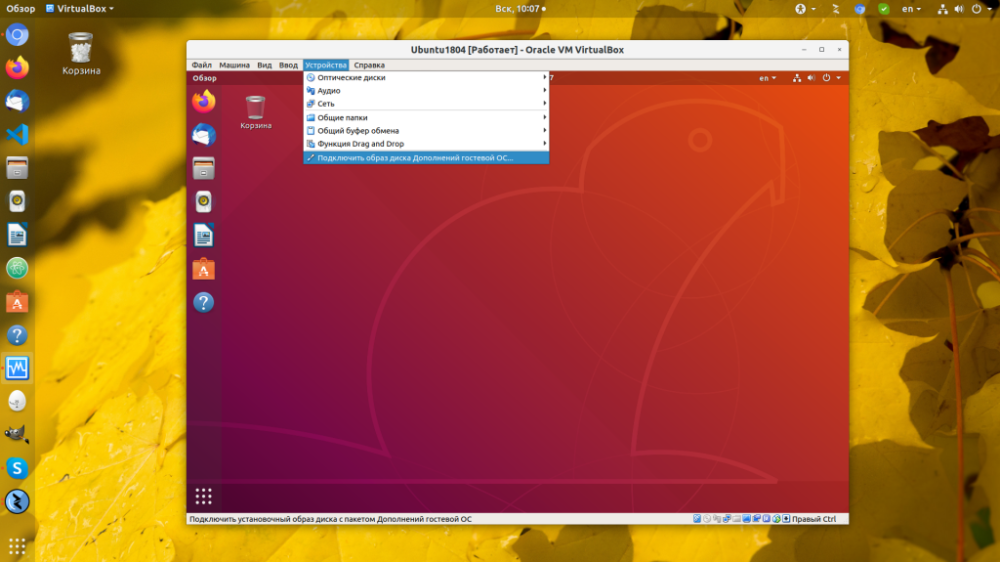
First of all, let's open the "Devices" menu of the running virtual machine. Next, select the item "Connect the image of the guest OS add-on disk";
Run the installer
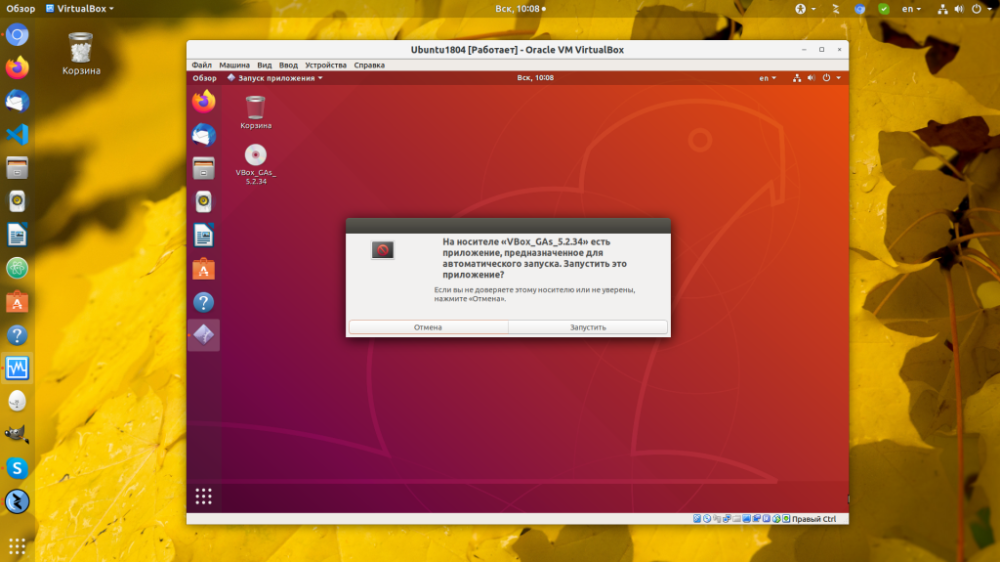
Soon after the connection a notification will be displayed, you will have to click "Run":
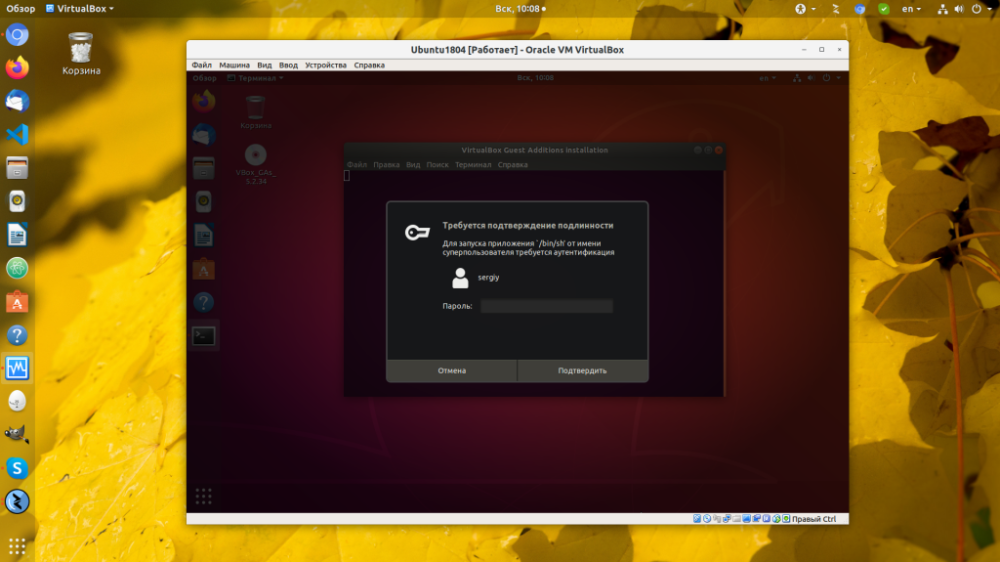
Next, the system will ask for your password, initializing the program is a superuser action:
Rebooting the system
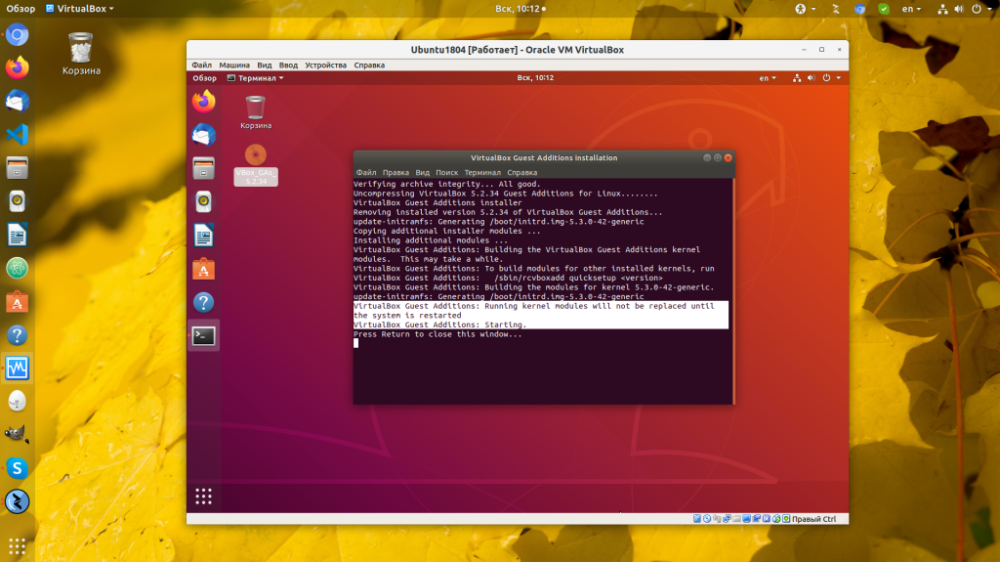
After the installer finishes, it is enough to reboot the virtual machine. Check that the initialization went without errors:
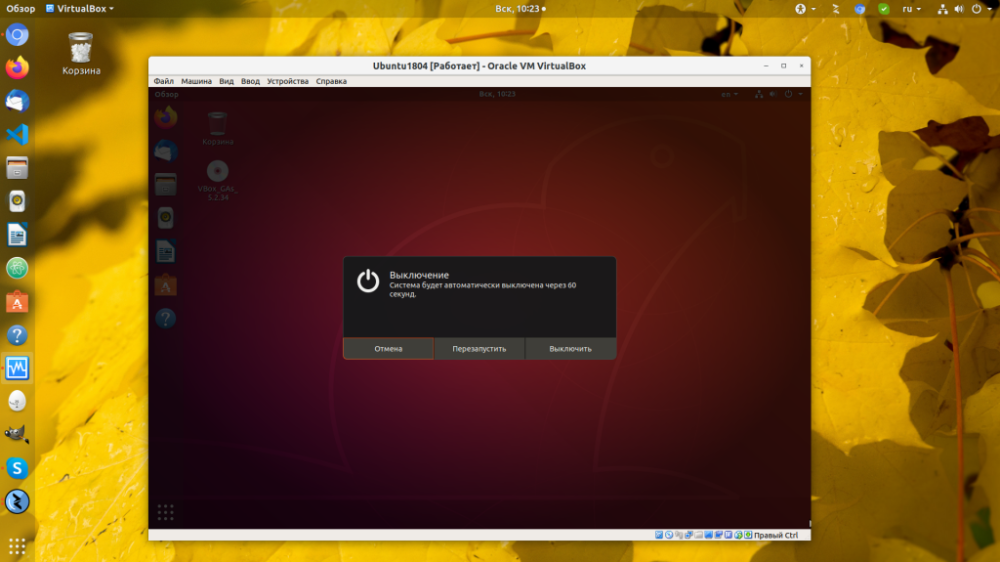
Press the arrow in the top right corner of the screen, then the shutdown icon, then "Reboot" to restart the PC:
Finish
This completes the initialization of the VirtualBox Ubuntu guest OS add-ons. From now on, you can apply the benefits of working in the guest OS.