




















































In previous articles we have already told you what tmux is. Today we will tell you how the copy and paste procedure is performed.
What the option is for
There is mouse support in tmux, which allows you to select text and copy it to the clipboard. To enable mouse support in tmux, add the following line to the .tmux.conf configuration file:
set -g mouse on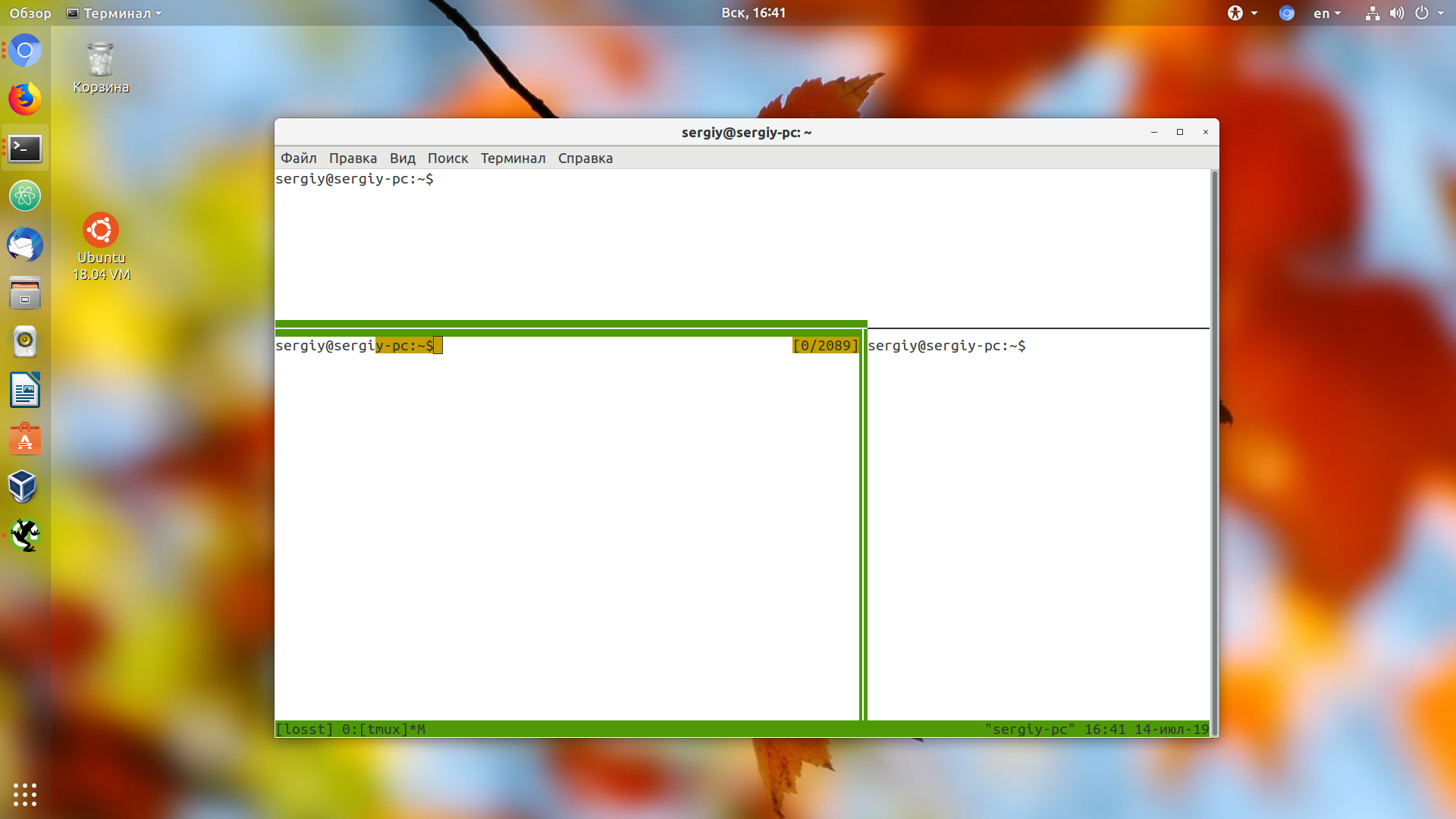
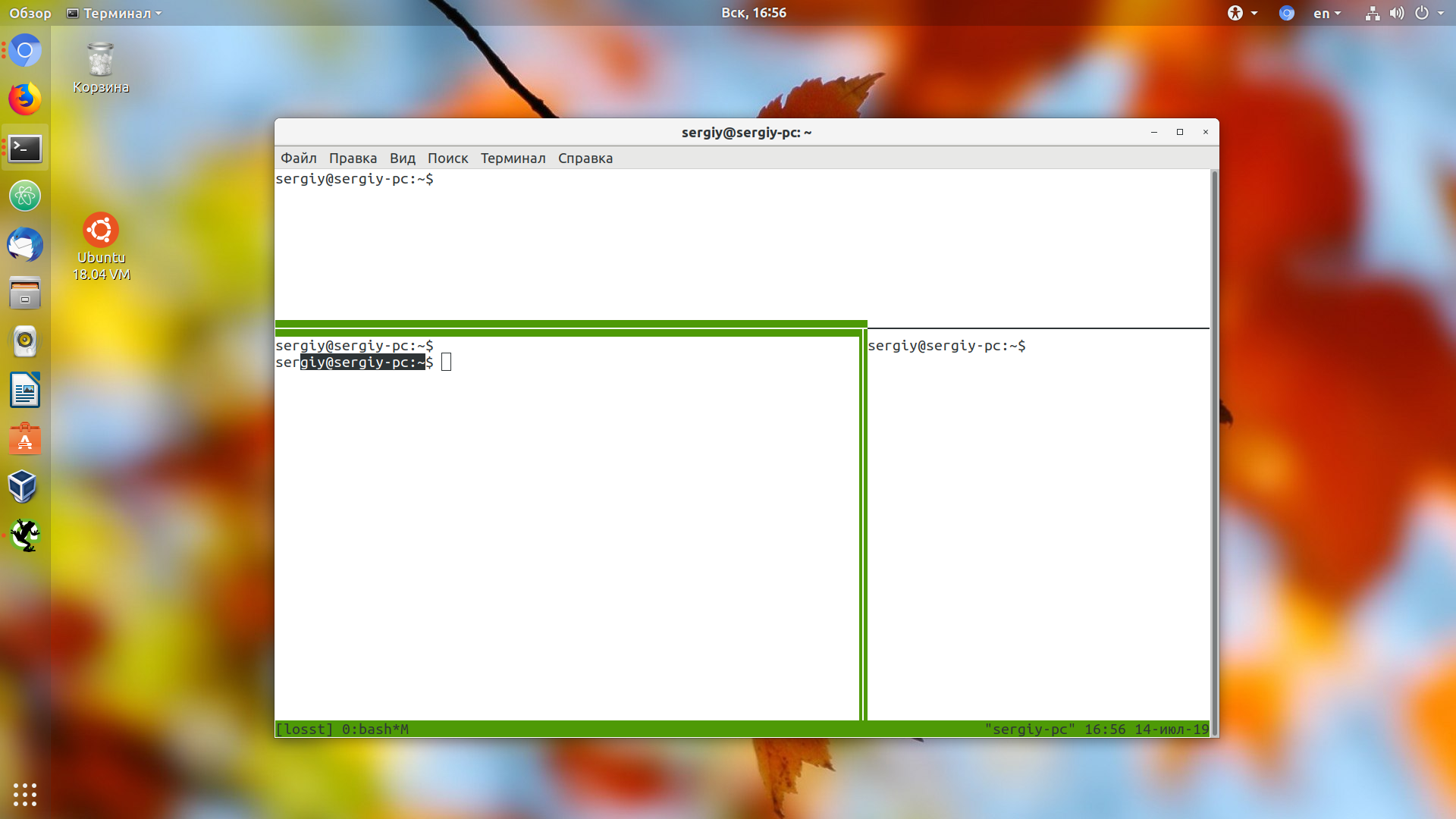
After that, you can use the mouse to select text, just like in a normal terminal. Once you have selected the text, it will automatically be copied to the internal tmux buffer. To paste the copied text into another part of the terminal, press `Ctrl + b`, then `]`. This will open a panel for pasting text into the terminal. Paste the text and press `Enter` to close the panel.
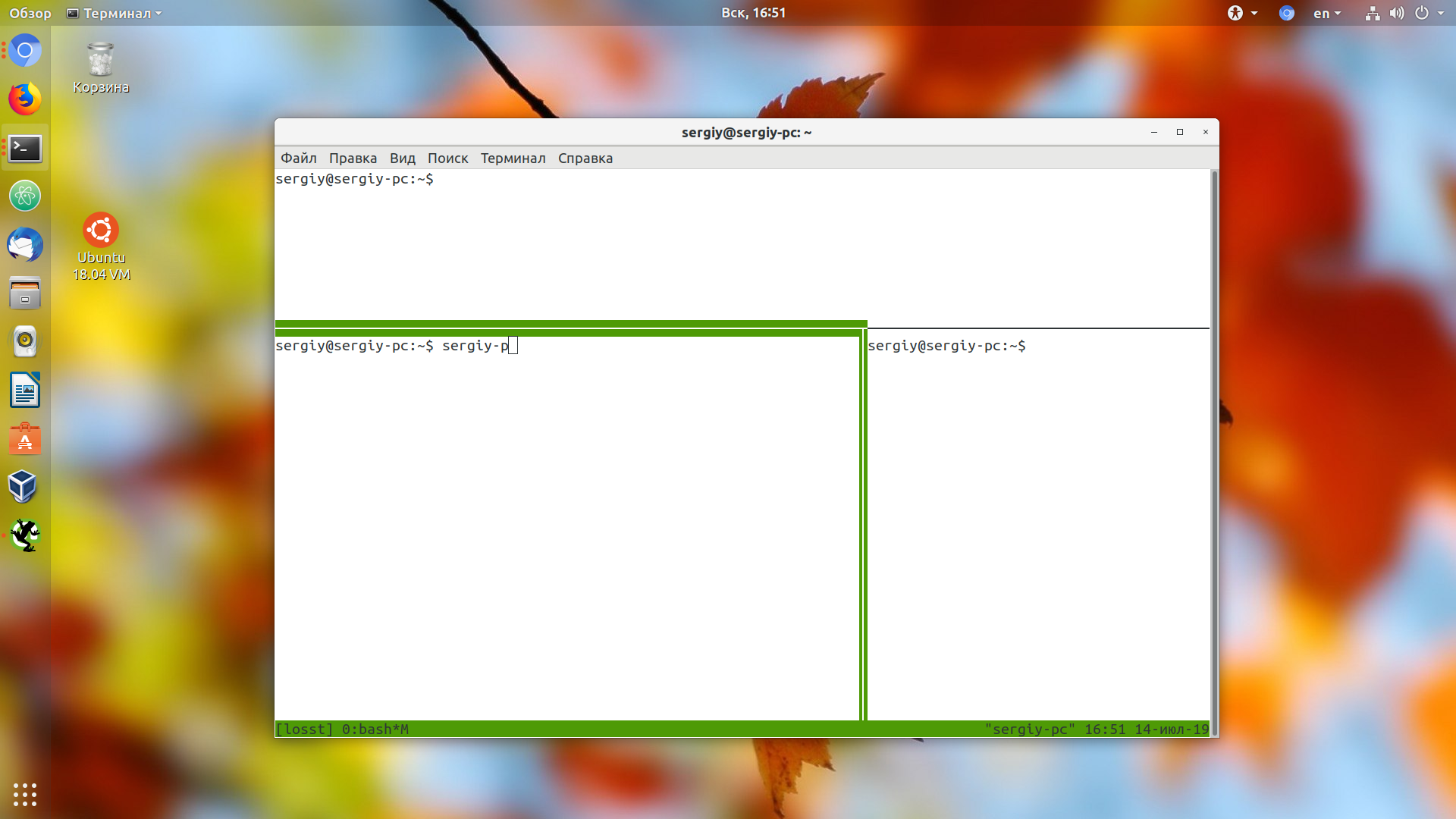
Alternatively, you can use the `Alt + W` keys to copy the selected text to the system clipboard, and `Ctrl + b` then `#` to view a list of copied text snippets (usually for pasting text from previous sessions).
How to copy and paste in tmux
The order of operations will be as follows:
- Open a terminal and start tmux with the `tmux` command.
- Open the desired file or text in another program.
- Press `Ctrl + Shift + C` to copy the selected text.
- Go to the tmux session in which you want to paste the text.
- Press `Shift + Insert` or `Ctrl + Shift + V` to paste the copied text.
- Press `q` to exit copy mode in tmux.
- Done! The text is copied and pasted into the tmux session.
As you can see, even an absolute beginner can cope with this task!