




















































VLC (VideoLAN Client) is a free cross-platform media player that allows you to play most types of audio and video files, as well as streaming video and audio from the Internet. It is created and maintained by the non-profit organization VideoLAN and is available for Windows, Mac OS X, Linux and other platforms.
How to record a VLC screen
VLC has many features including subtitle support, playback speed control, effects and filters, media conversion, and more.
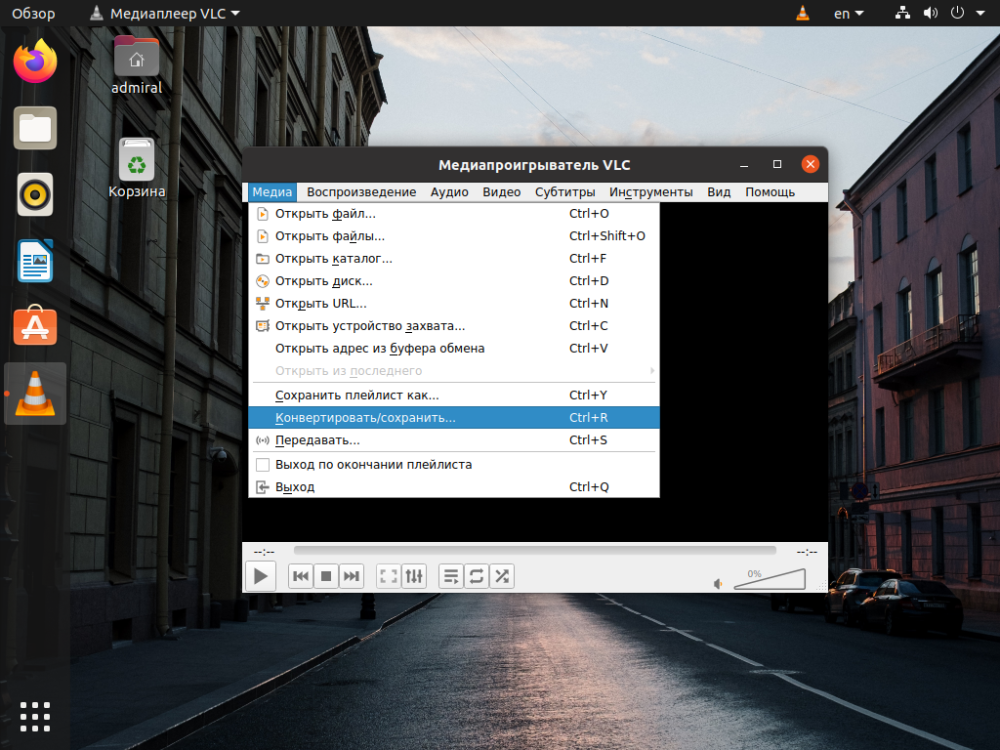
In addition, VLC can also be used to record video from a webcam or computer screen, as well as stream media files over a network. VLC is one of the most popular media players in the world and is characterized by its ease of use and wide range of features.
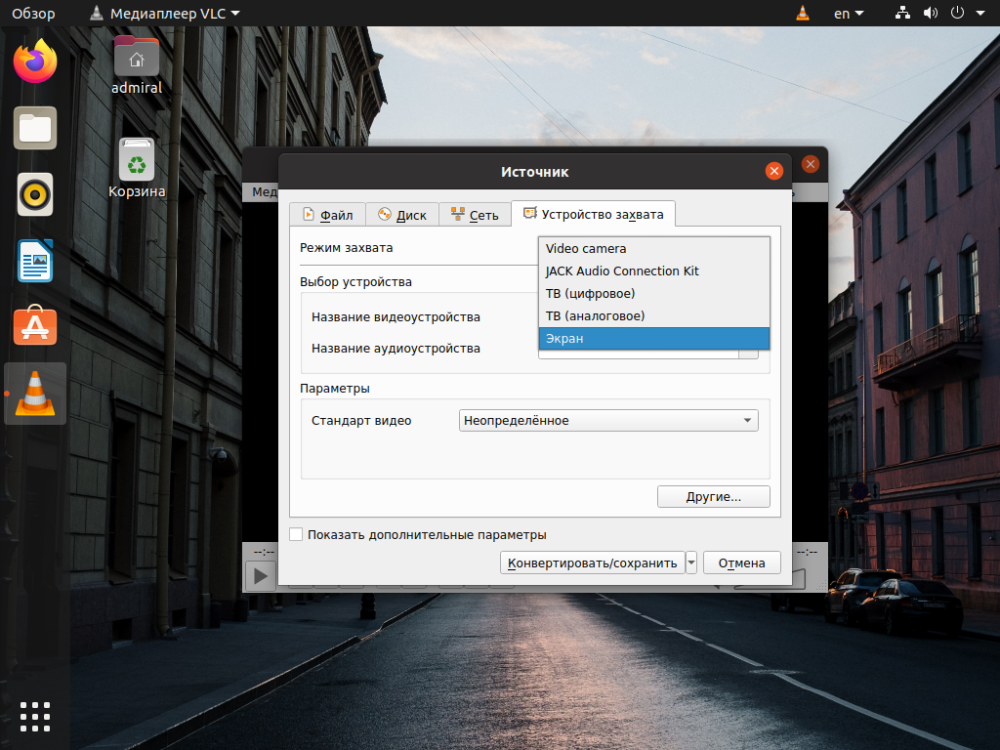
To record screen video in VLC on Linux, follow these steps:
- Open VLC media player.
- Click on "Media" in the top left corner and select "Capture Device...".
- From the "Device Capture" menu, select "Screen" as the capture source.
- Configure the desired capture settings such as screen resolution and frame rate.
- Click on the "Ok" button to save the settings.
- Click on the "Play" button to start recording screen video.
- Click on the "Stop" button in VLC to stop recording.
The video file will be saved by default in your home directory, but you can choose another folder to save it if you want.
That's it, now you have screen recording video in VLC on Linux!