




















































22.04.2021
20:17
While working, it may become necessary to change the password on Windows 2019 operating system. It is quite easy to do so and in this instruction, let's look at the procedure to be followed.
Instructions for changing the password
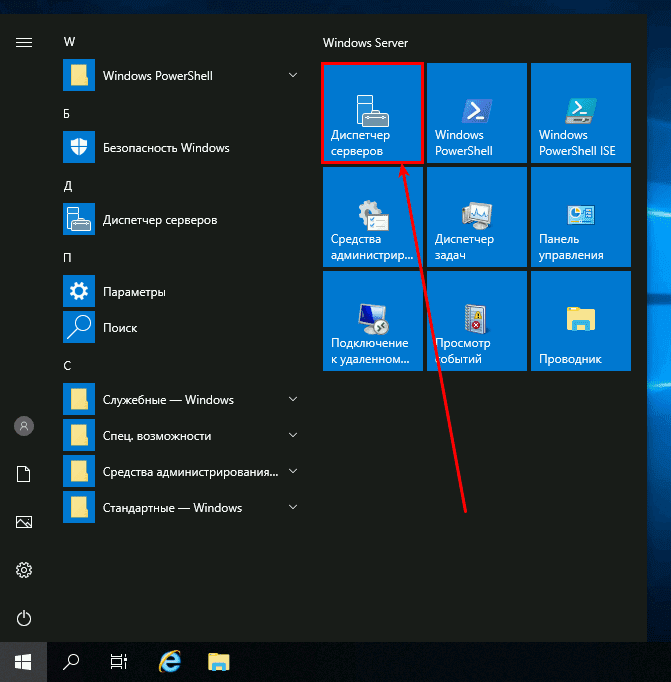
The first action is to open the Start menu and launch the "Server Manager".
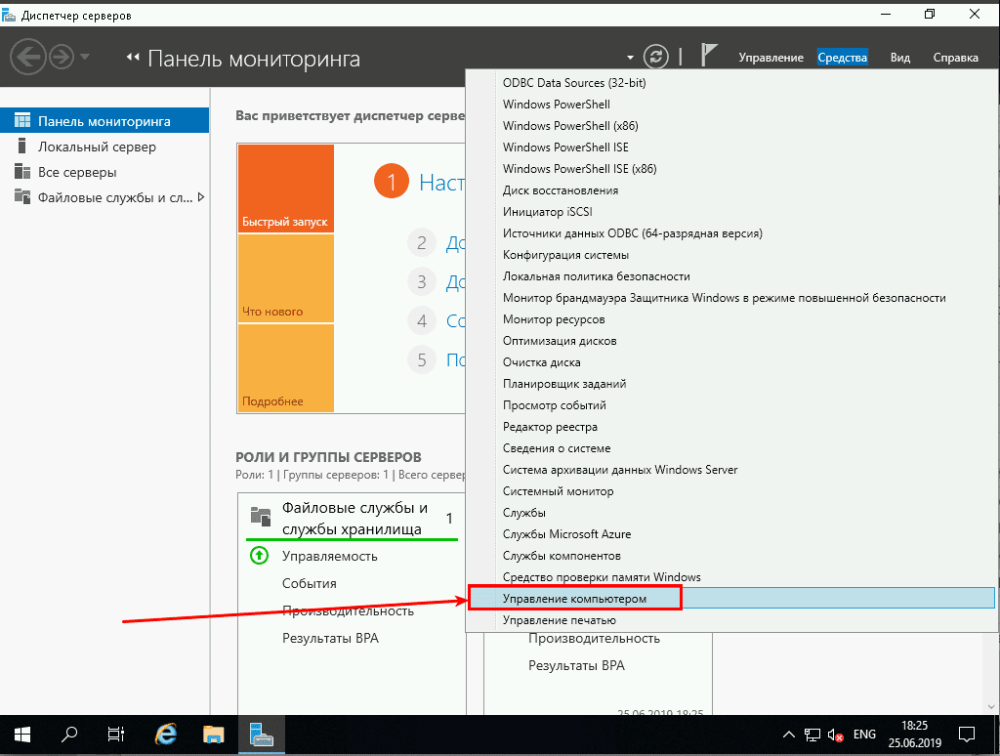
Now click on the "Tools" tab and select "Computer Management" from the drop-down menu.
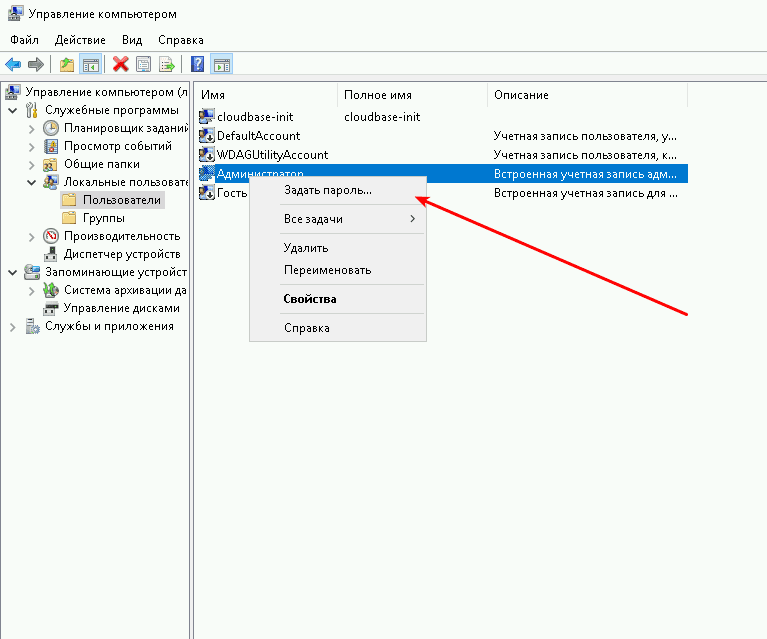
Next action - In the Computer Management window, go to "Local Users" and then to "Users". Now right click on the name of the current user and set a new password.
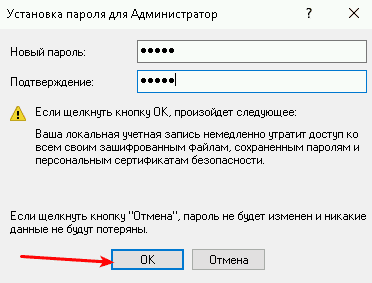
Set a new Windows server 2019 local administrator password and click "Ok"
Order a new VPS in Bosnia with a 75% discount!
A reliable server for your projects at an affordable price.
Other articles
22.04.2021
6 991
Knowledge base / Instructions - THE.Hosting
22.04.2021
6 113
Knowledge base / Instructions - THE.Hosting
22.04.2021
6 552
Knowledge base / Instructions - THE.Hosting