




















































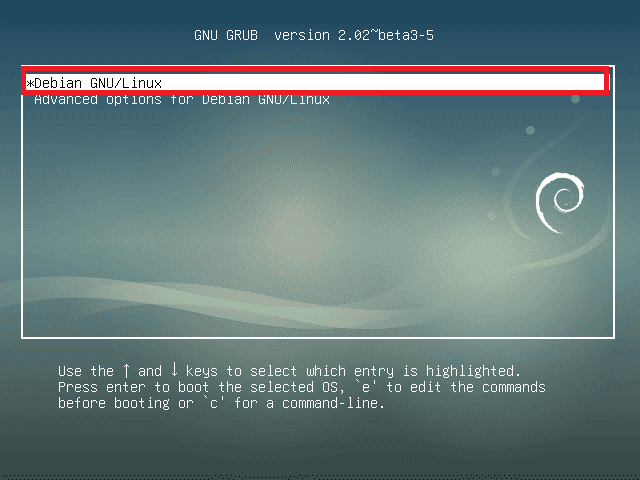
For a number of reasons, it may be necessary to change your Debian password. For example, it may have simply been lost. This is a solvable problem. Next we will show you how to reset the root password in Debian. Simply follow the steps below to regain access and set a new root password. Start your computer running Debian and press any key to stop the boot process. Next, select "Debian GNU/Linux" and press the "e" key to edit the kernel parameters in the command line.
Now, using the "down arrow" key to scroll down, go to the line that starts with the word linux and use the arrows to move to the end of the line or press the "end" key and then add init =/bin/bash there.

After successfully adding the entry, press Ctrl + x or F10 to boot the system.
Debian will then boot in single-user mode, with the root filesystem mounted in read-only mode. Use the command below to mount the root filesystem in read-write mode.
mount -o remount /Now change the password of the root user using the passwd command. Specify the new password and confirm it. All that remains is to restart the computer and use the newly set user password.