




















































In this tutorial, let's look at how to change the line spacing in LibreOffice Writer word processor and adjust the spacing before and after a paragraph. There are several ways to do this.
What is LibreOffice Writer
LibreOffice Writer is a free word processor that is part of the LibreOffice suite of office applications. It provides the user with many tools for processing text documents, including creating, editing, formatting, inserting graphics, tables, hyperlinks. Writer supports many file formats, including DOCX, RTF, ODT.
How to change line spacing
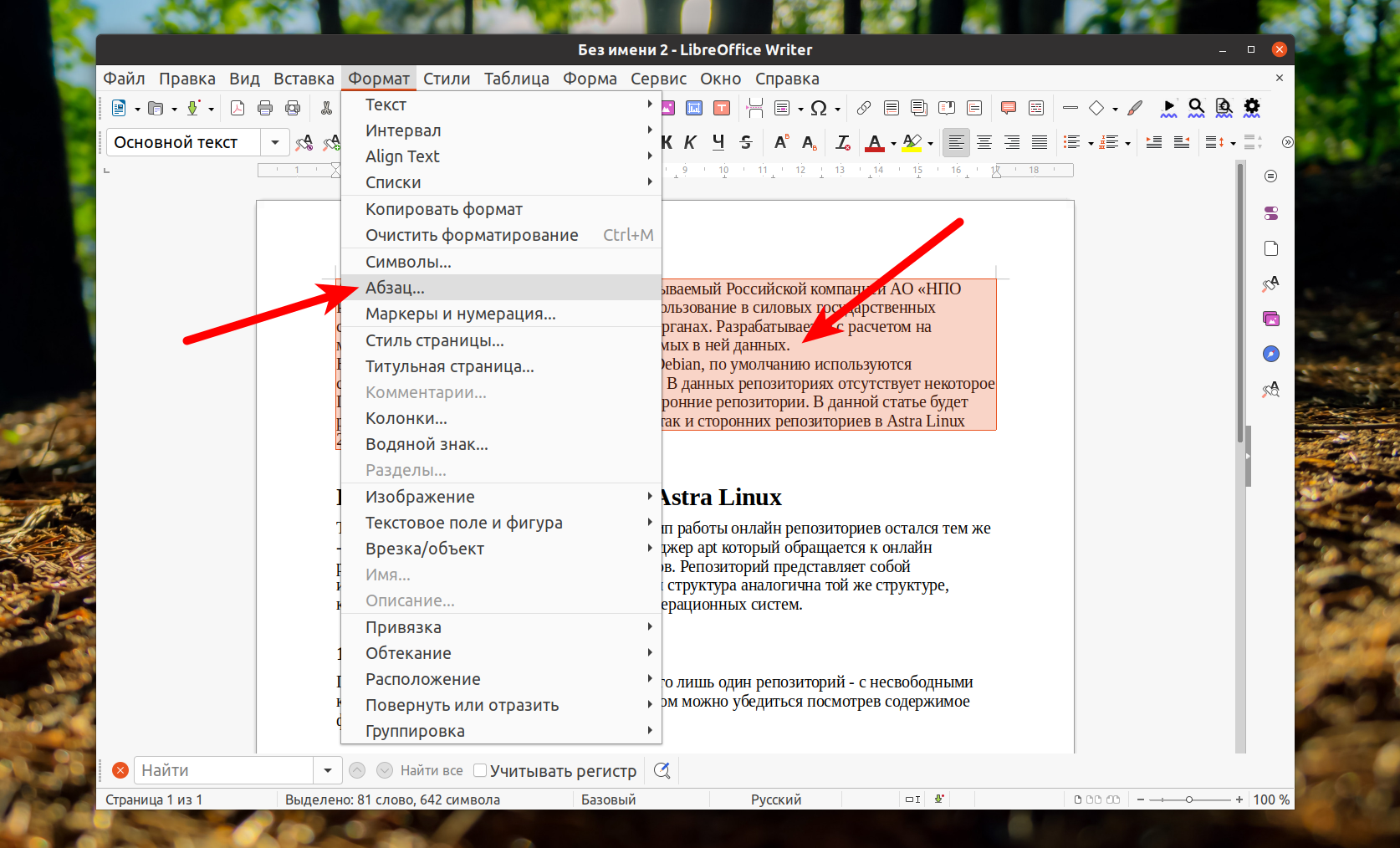
By default, the settings apply only to the current paragraph. If you want to apply the settings to a specific text, you must first select it. Then open the "Format" menu and select "Paragraph".
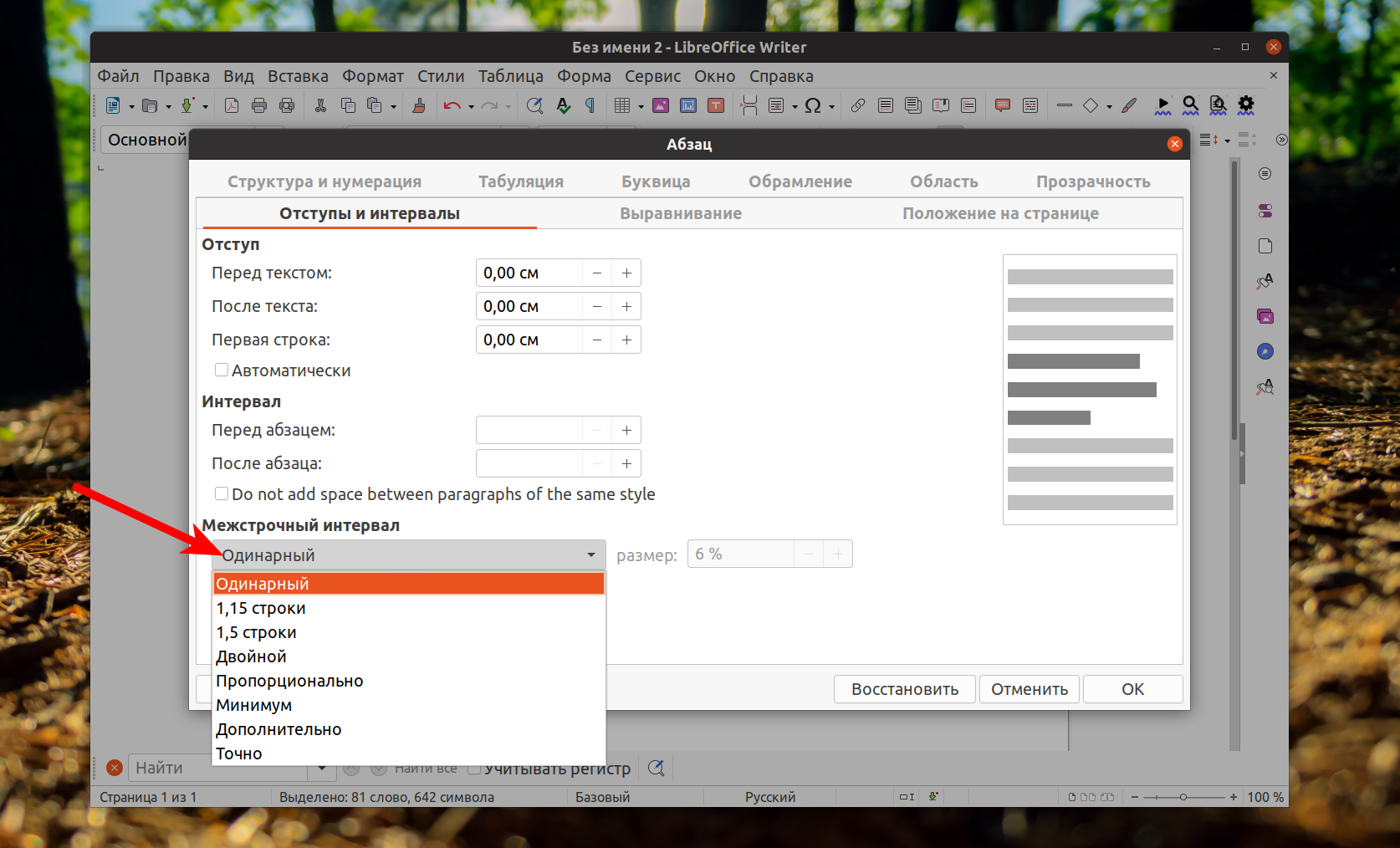
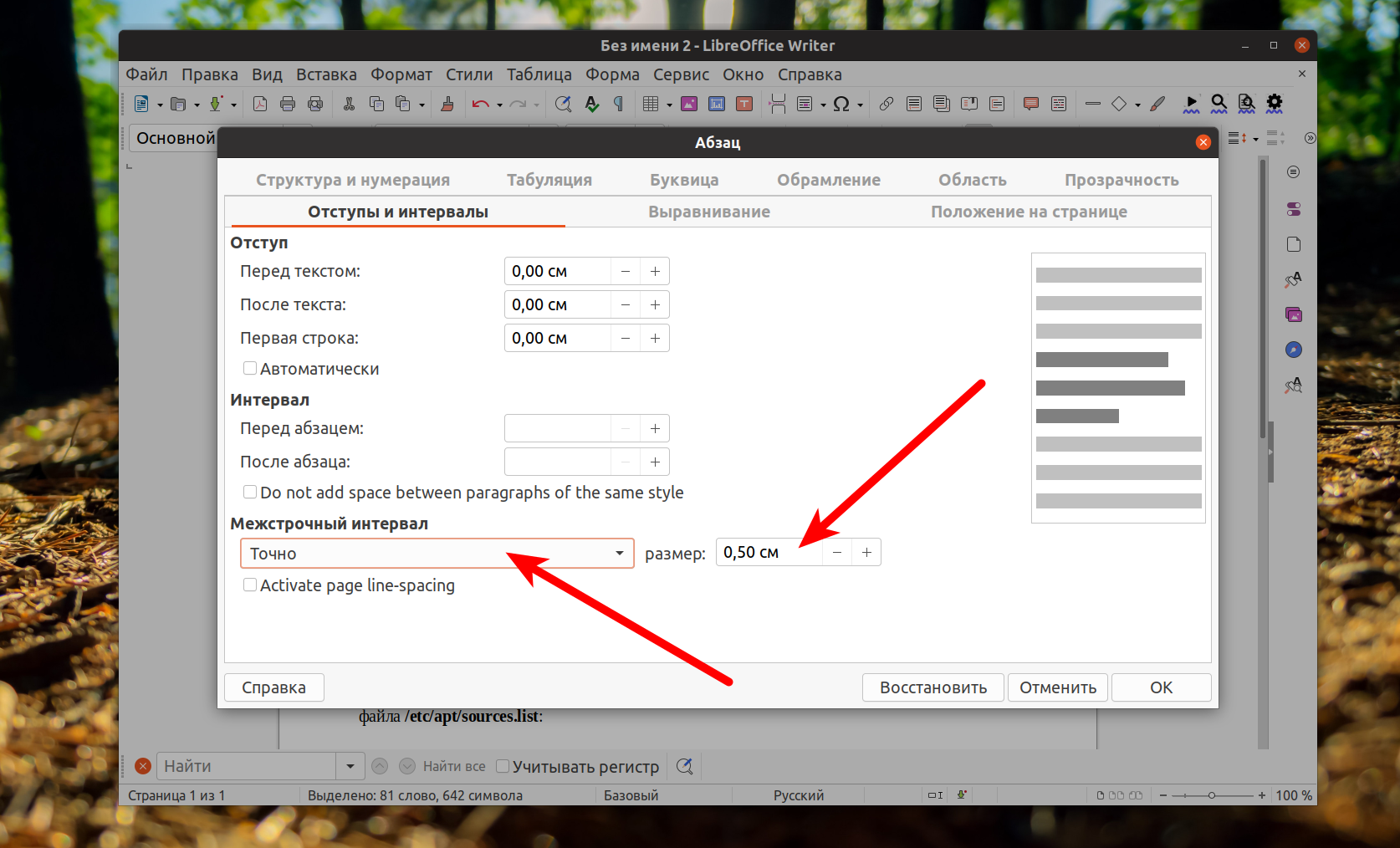
In the window that opens, you can select the desired value in the "Line spacing" field. If the preset values are not enough, you can select "Exact" and specify the desired interval in centimeters.
You can also use the "Set line spacing" button on the toolbar. Here you can also select both preset values and specify the exact spacing manually.
If you want to change the line spacing in the whole document, you should open the Style Editor in the sidebar on the right and change the settings of the required style used in the document.
To customize paragraph spacing, you should use the Interval section in the same window. Do not use line breaks for formatting, it is better to use all necessary settings available in the program.