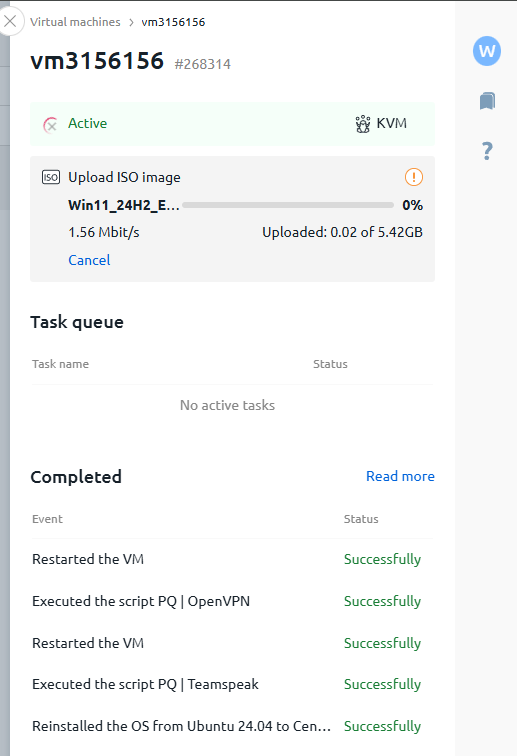
To connect the ISO image on your server:
Follow these steps:
1. Authorize in the billing system. (Authorization data can be found on your E-mail, which you used when registering your account).
2. On the left, under "Products/Services" - click on "Virtual Servers".
3. Select the server you are interested in and click on the "To Panel" button.
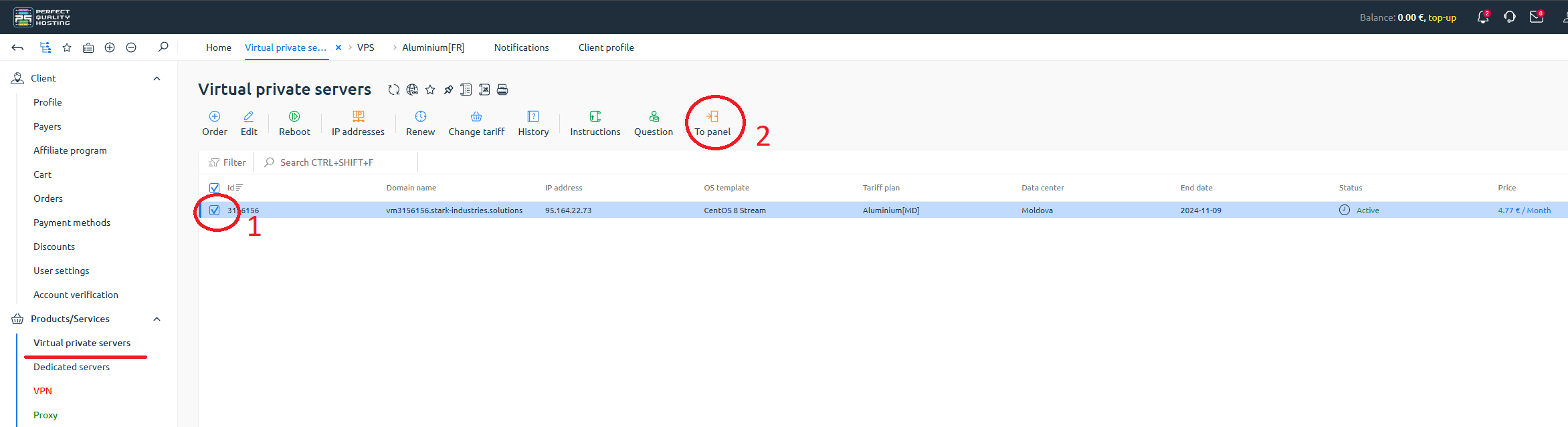
You will be redirected to the control panel.
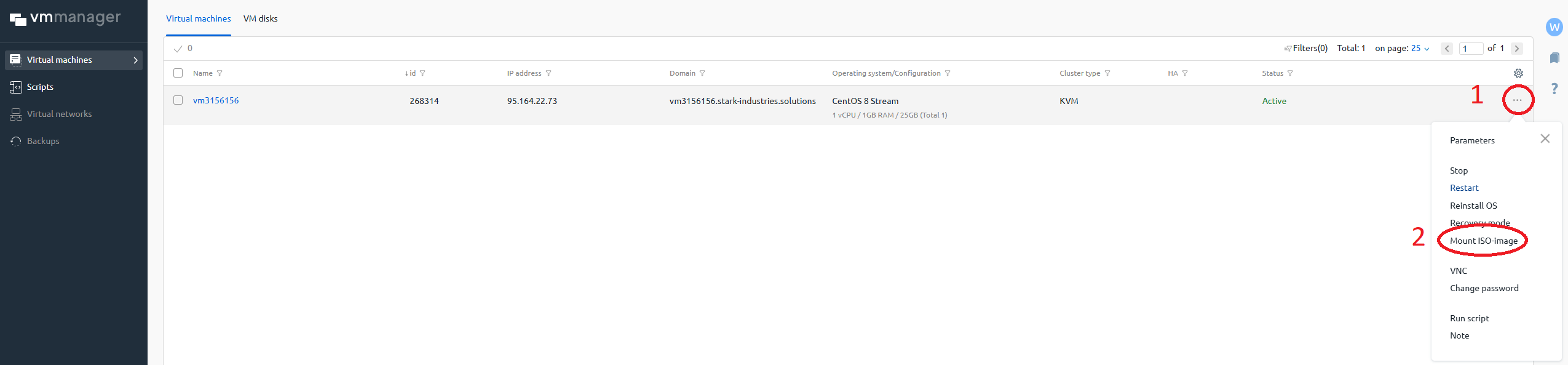
4. In the "Virtual Machines" column - click on the "three dots".
5. Click on "Mount ISO image".
6. In the window that opens - select the download method you are interested in.
7. Click on "Select it on device", explorer opens.
OR just drag and drop the desired file into the special field.
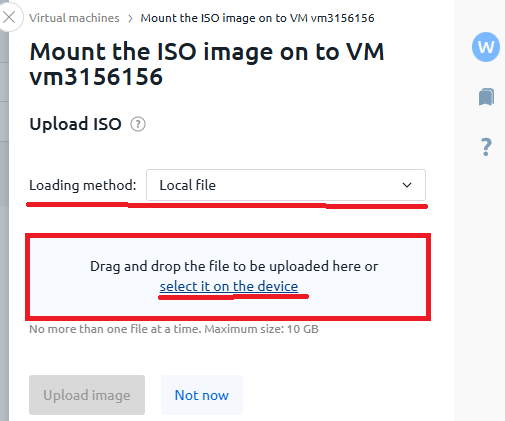
The file size must not exceed 10 GB!
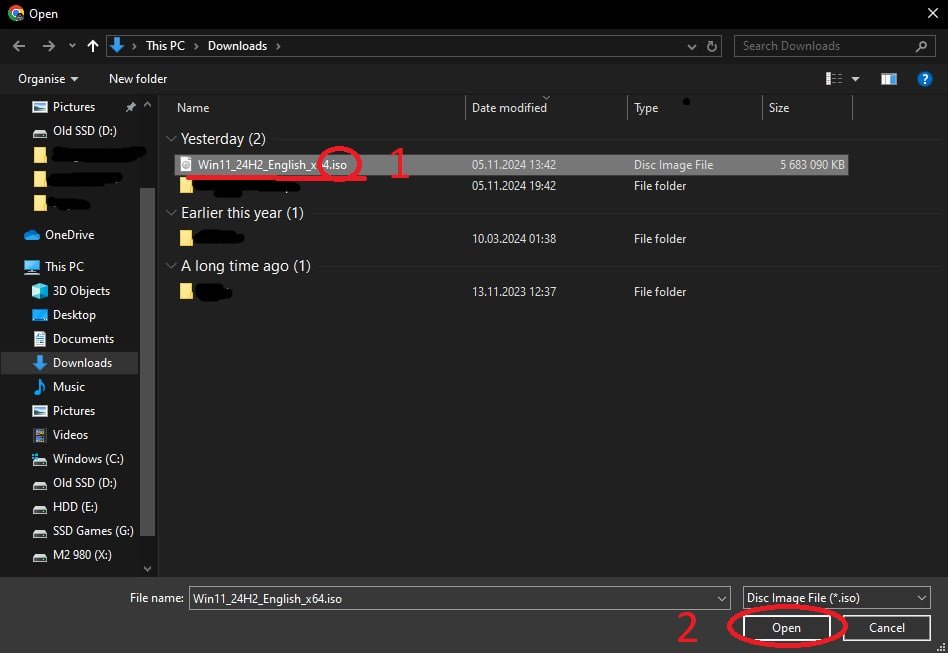
8. In Explorer, select the file and click on "Open".
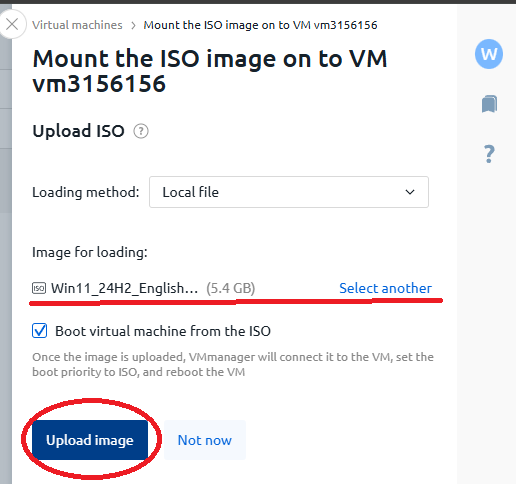
9. If you have done everything correctly, the file will appear in the "boot image" section.
To select a different file, click on "Select another".
10. Click on "Upload Image."
The download process will be displayed on your screen.