Sometimes you need to quickly change your IP address — for example, if a website is blocking access or you're working with different regions. The easiest way to do this is through a browser extension. Set it up once, and you'll be able to switch between proxies in just a couple of clicks. Here’s how to do it in Firefox using FoxyProxy and a proxy from THE.Hosting.
Step-by-Step FoxyProxy Setup
1. Purchase a Proxy from THE.Hosting.
2. Log in to the billing panel.
3. Click on the Proxy service.
4. Click the checkmark icon, then click on the Instructions button.
5. Download one of the configuration files. The information is the same in each — only the order of the fields differs. Choose the one that’s easiest for you to read.
6. Install the FoxyProxy extension.
7. For easier access, pin the FoxyProxy icon to your toolbar.
8. Click the FoxyProxy icon → Options → Proxies → Add.
9. Fill in the details:
→ Name: You can give it any name you like.
→ Type: Choose HTTP or SOCKS5, depending on what your file shows.
→ IP Address: Copy it from the config file — it looks like a string of numbers separated by dots.
→ Port: A short number next to the IP address, after the colon.
→ Username and Password: Also in the config file — just copy them.
10. Click Save.
11. Click the FoxyProxy icon again and select the proxy connection you just created.
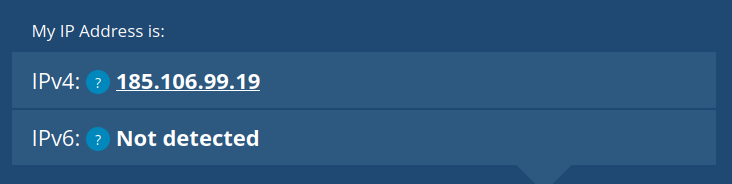
12. Visit a site like whatismyip.com to check if your IP address has changed. If it shows a different country — everything is set up correctly.